Short note: This website is in Beta - we are currently building everything up but you can already find the apps to download and participate! Thank you and stay safe!

 Questions, help or just curious?
Super User
Data Visualisation Overlay

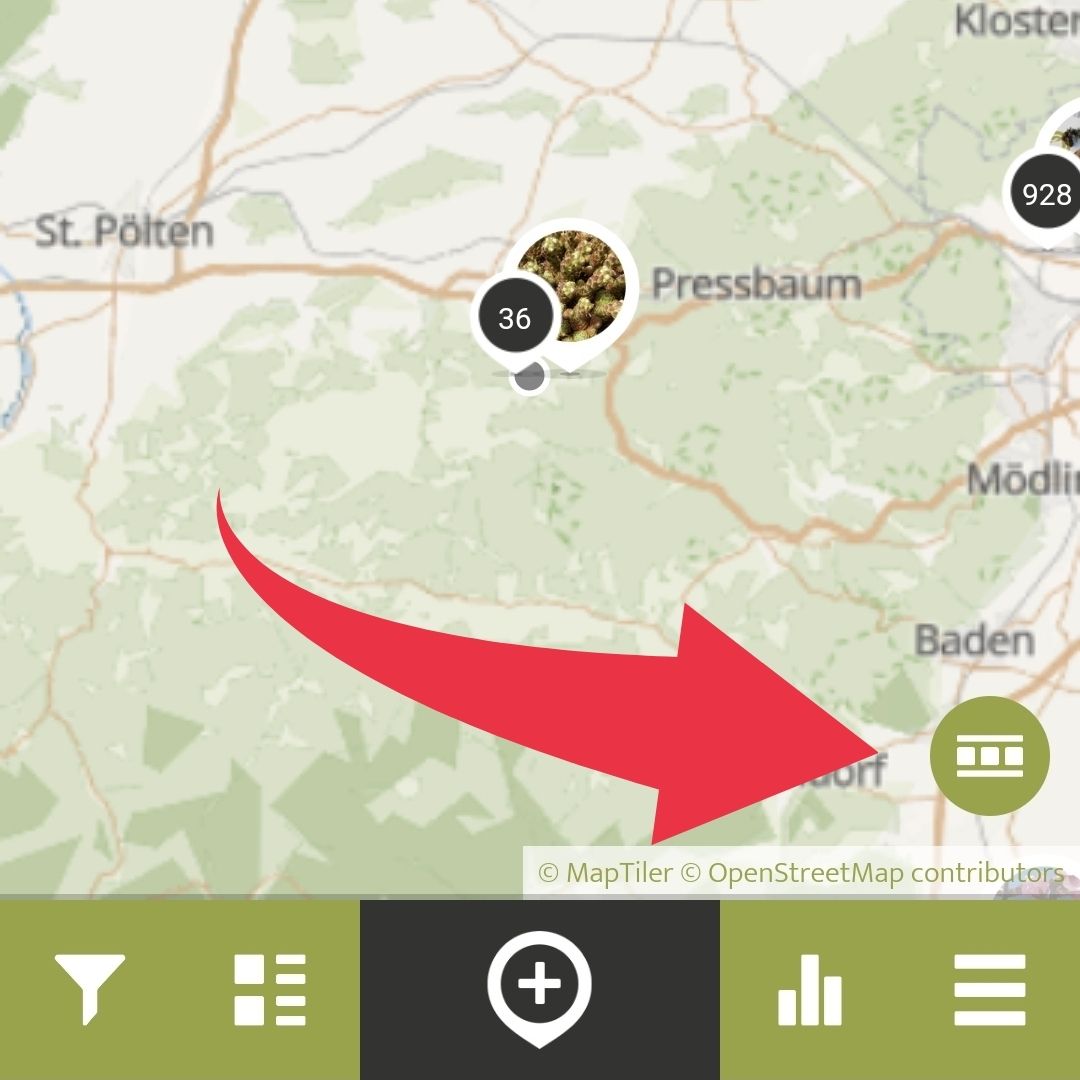
By clicking the Data Visualisation Overlay button, you can see different data visualisations of Spots within the app.
Currently, you can choose between two different kinds of visualisations, the classic heatmap that shows the density of Spots with colours, or the Distribution Dot Map which is visualised on a grid, with more Spots in bigger, and less in smaller circles.
Block Content and Users

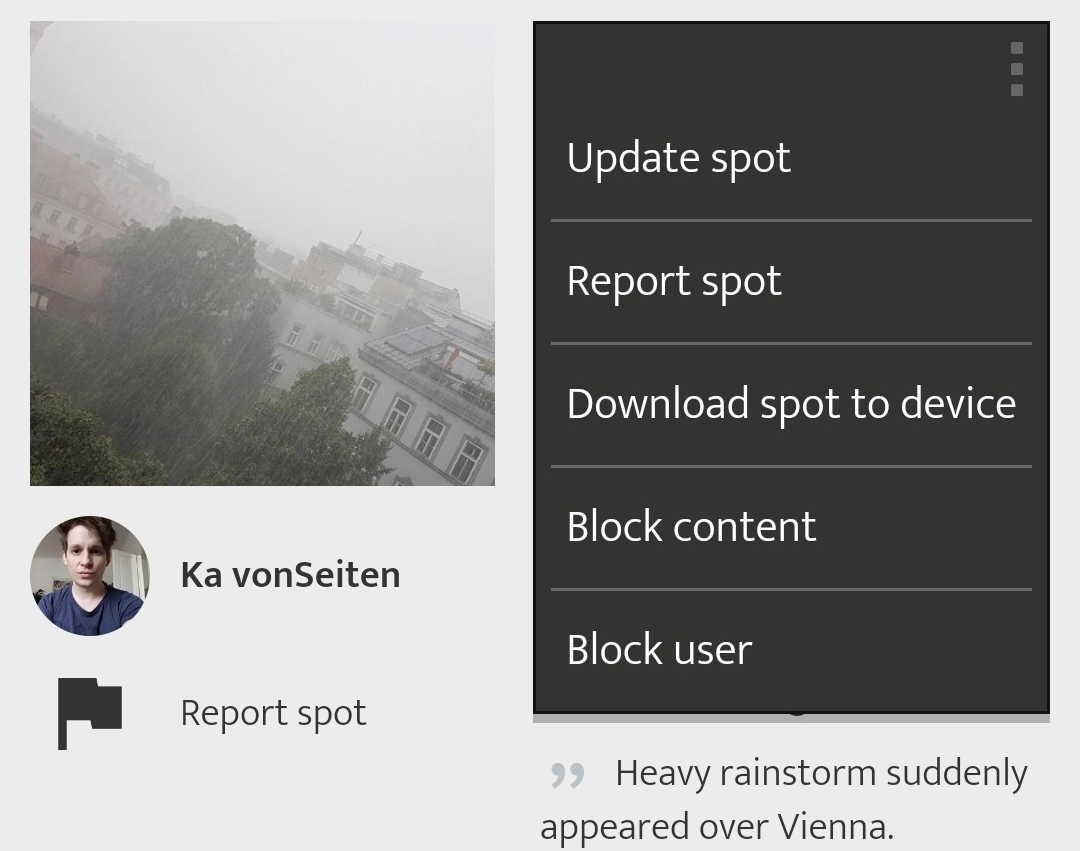
You can block content and other users you don't wish to engage with by logging into the app, open the Spot menu (three dots on the right-hand side), then go to „More“. Here you can choose to eighter „Block content“ (only this spot will be blocked and blurred out), or „Block User“ (all posts by this user will be blurred out). You can reverse this anytime by clicking „Unblock content“ in that Spot.
The Map Disappeared / Doesn't Show Up
If you can't see any content (map tiles) in the map section, please first check whether your smartphone has an internet connection or is in aeroplane mode. If this is the case, please activate your internet connection and restart the app. If no map content appears despite an internet connection, please change the map type in Main Menu> Settings. Sometimes the map provider may also be temporarily unavailable.
If this does not help, please restart your smartphone completely or uninstall the app to reinstall it. If, despite all these steps, the problem persists, please write us at This email address is being protected from spambots. You need JavaScript enabled to view it., including details of your smartphone model, operating system + version and a screenshot. Thank you!
Nature Park Garden - Small Gardens, Big Impact | BUND
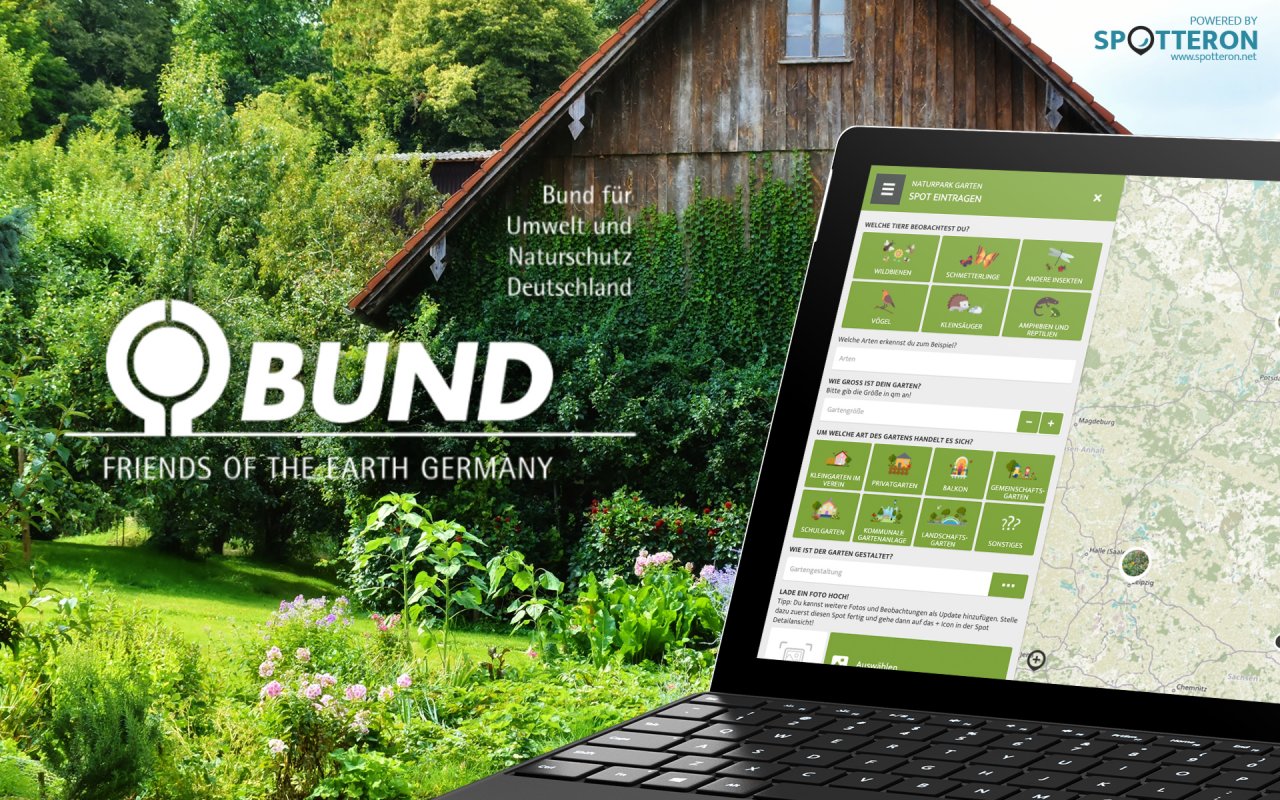
Gardening is currently experiencing a renaissance. Eating fresh, healthy fruits and vegetables from your own garden is a beautiful experience. It is even better when you consider natural cycles in cultivation, avoid pesticides and peat, and promote biodiversity. Gardens offer enormous potential for protecting biodiversity. This Citizen Science App will help you with that!
Be part of creating a large nature park of insect-friendly gardens!
Allotments and private gardens, and communal green spaces with their biodiversity are part of the German cultural heritage and have enormous potential as habitats for insects, birds and small mammals, provided they are managed in a natural and pesticide-free manner. Many hobby gardeners are already doing this, but the knowledge is often not very widespread. The BUND would like to make the large area of near-natural gardens visible and put it into focus.
Why participate?
The BUND gives tips and advice on natural gardening without pesticides and peat and for diversity in the garden and would like to encourage gardeners, school classes, municipalities and interested parties to make their gardens, areas and balconies insect-friendly and to share their experiences. The aim is to create a large contiguous area (biotope network) of insect-friendly gardens in Germany, where valuable species can spread out and thrive. Take part and put your garden, school garden, balcony or communal green space on the map and help protect our nature and biodiversity!
ClimateWatch
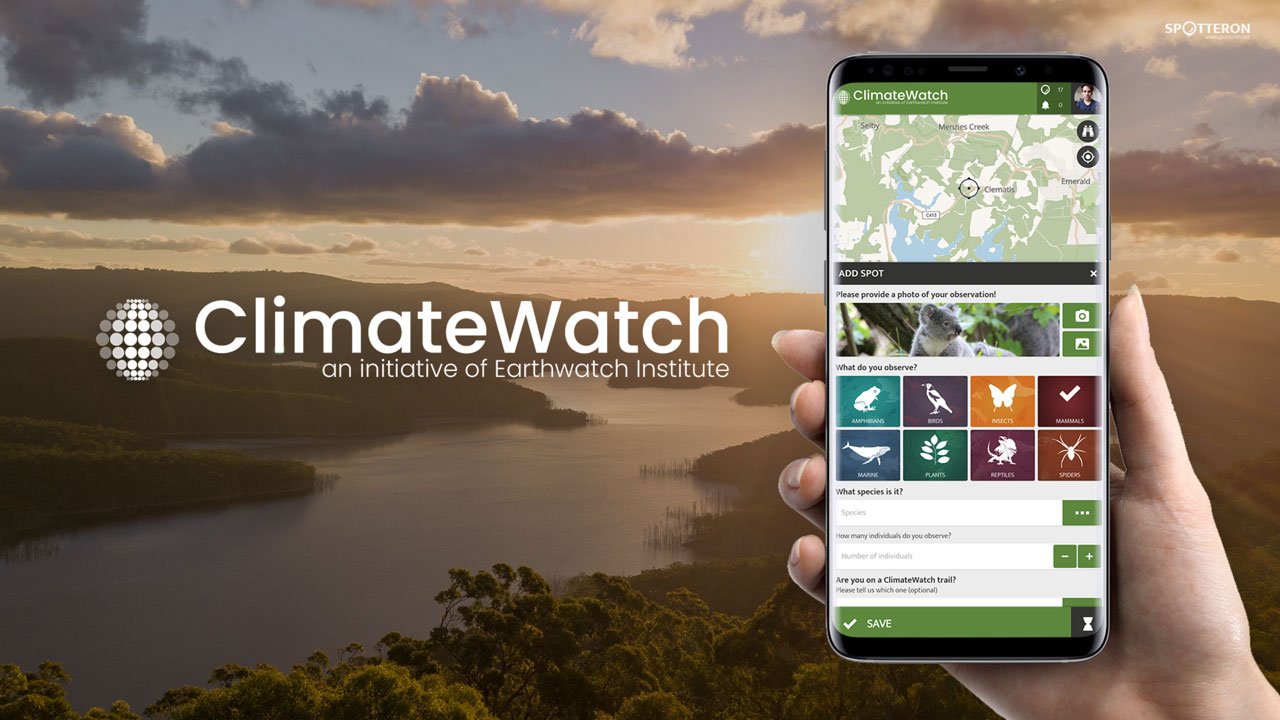
Are you concerned about the environment? Do you want to help preserve the natural heritage of Australia for generations to come? Then get involved with the ClimateWatch App - the first continental phenology project in the Southern Hemisphere - and be part of an active community making a real difference to the future of our planet.
Forgot Your Password?
If you forget your password, there is the "Reset Password" function. Right next to the login form, you will find a text link that will take you to a new dialogue. There you can enter your e-mail address, confirm that you are a human (Captcha) and then press the reset button.
You will then receive an e-mail with another link. Use it to set a new password in your browser.
If you receive the error message: "No valid e-mail address", please check the correct spelling of your e-mail address again and also make sure that there are no spaces at the beginning and end. If everything is correct and the error message still appears, please contact us via This email address is being protected from spambots. You need JavaScript enabled to view it.. In most cases, this can happen if the e-mail address had a typo during registration. Let us know, and we will help you restore your access.
Didn't receive an e-mail?
Please check your SPAM folder. Automated e-mails often end up there. If no e-mail has arrived after some time, please contact us via This email address is being protected from spambots. You need JavaScript enabled to view it.
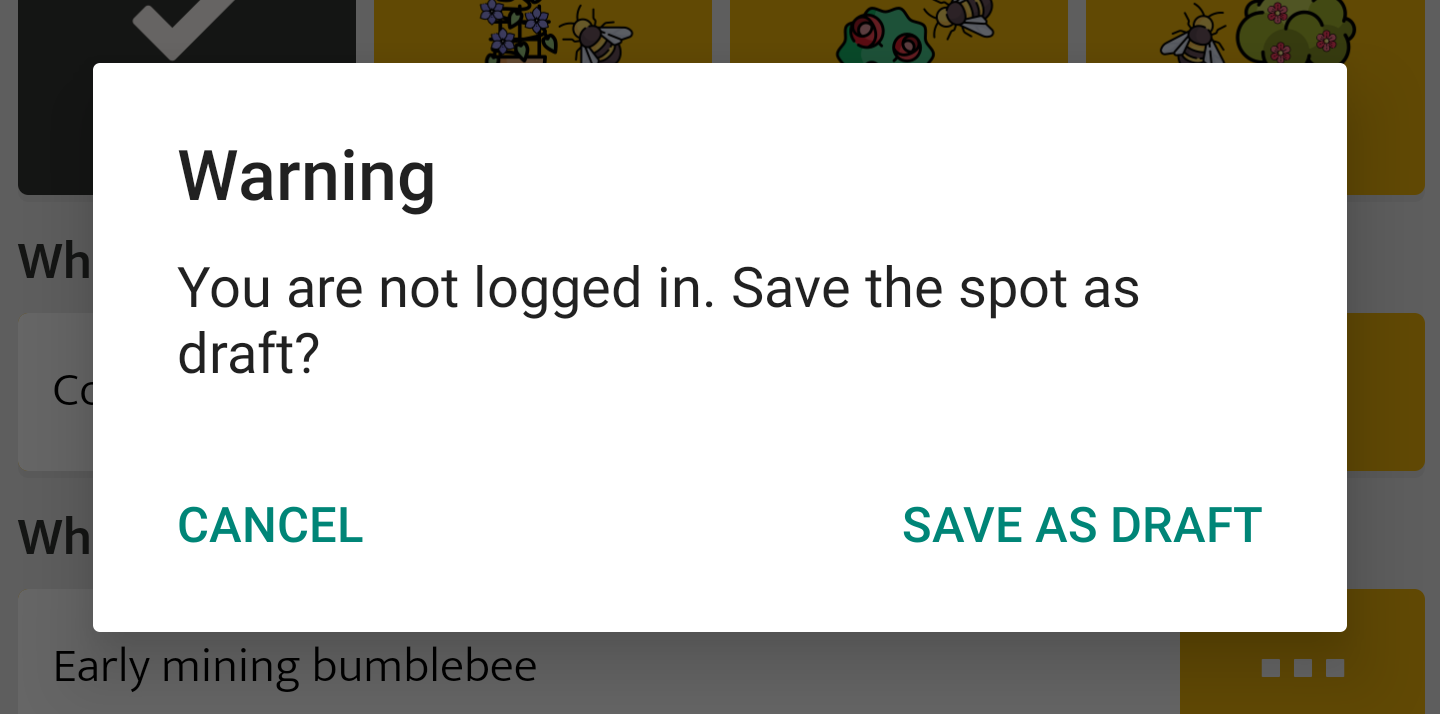
Warning: You Are Not Logged In
If the error message "Warning, you're not logged on" pops up when you save an observation, save the entry as a draft for the time being. The drafts are stored in the "Waiting Spots" section of the main menu, where you can upload it after you've logged in and re-evaluated your Spot.
No Internet Connection When Saving

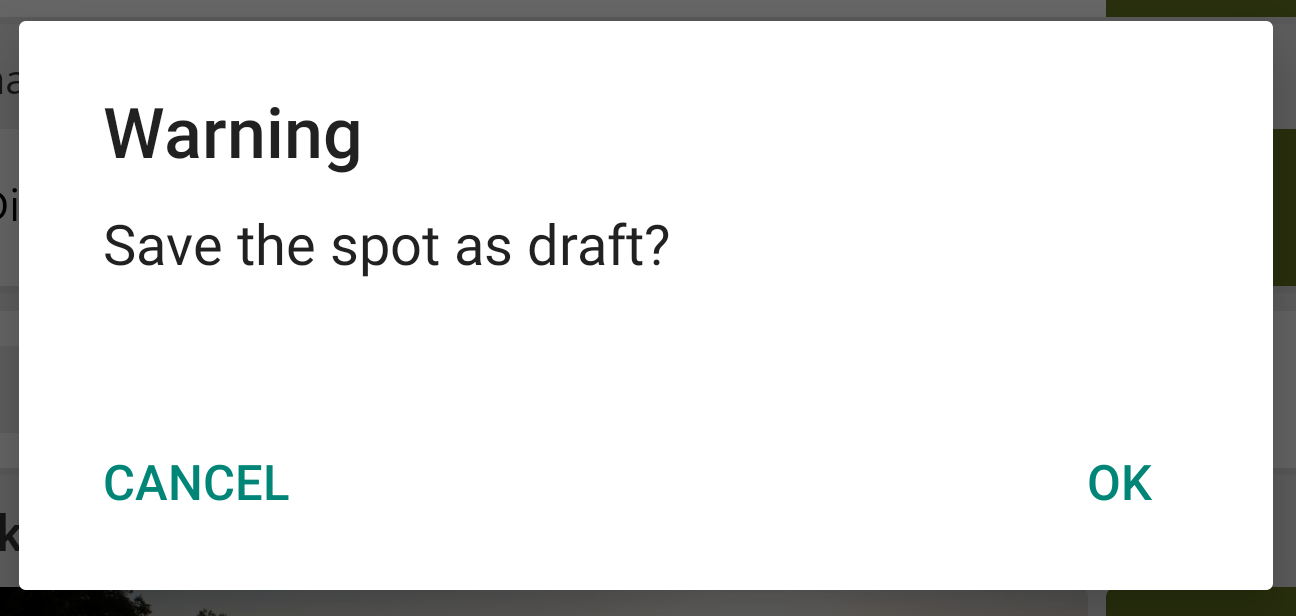
You can still record your entry and save it as a draft. After that, you can view it under "Waiting Spots" in the side menu. If you have an internet connection again, you can upload the observation. It is good and important to record the entry at the actual time of observation, as it also stores the correct date and not the date of subsequent upload.
Location of Entries (GPS / location service)
When you first launch the app, you'll be asked if you want to allow the app to access your location. The location of your posts is an essential part of all apps on SPOTTERON.
Please allow access to the location service the first time you start the app to use it without any problems. On the map, you can see a dot with a circle around it. The dot is the location that the app gets back from your smartphone, and the circle represents approximate accuracy.
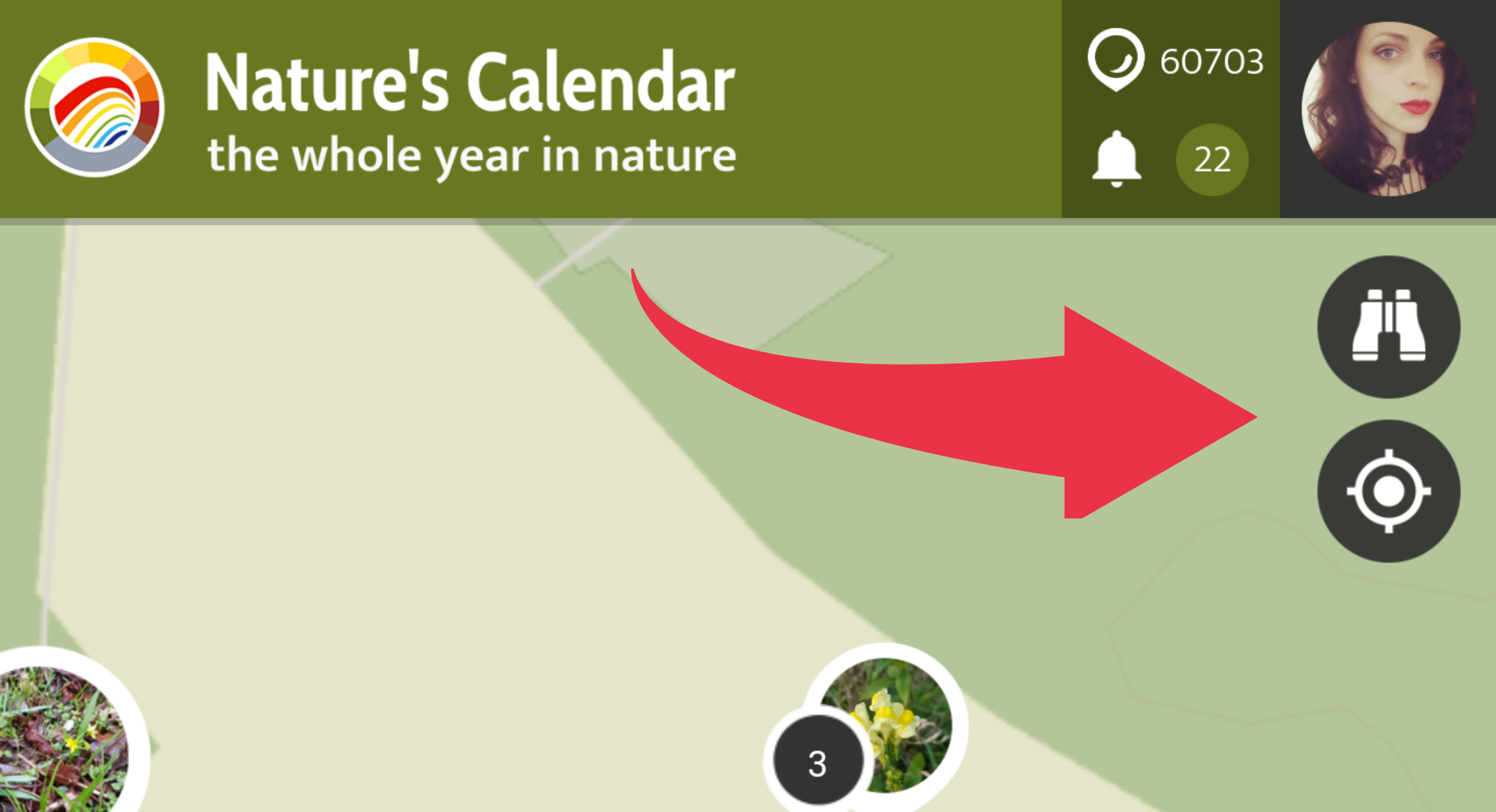
In the app, you can always use the location icon:  to jump to your current location. This may take a few moments, depending on the signal strength.
When entering a spot, the map is above the entry form. On the map, there is a crosshair  that points to where you want to locate your entry. You can drag the map to the correct location or use the location symbol here to jump to your current location using the phone's location services (aka GPS).
Any Issues?
To use your location in the app, the Location Service must be enabled in your phone's operating system. There are also several quality levels in the system settings of your smartphone.
If your location is turned off on your smartphone, close the app entirely, turn on the location service, reopen the app, wait a few seconds and click on the icon (see "Create a new spot")
If the location still does not work despite all attempts, it's possible that the app doesn't have permission to access the location service. Please check your app settings in the operating system or uninstall the app again and reinstall it from your App Store. This allows the app to reaccess your location as if the first time the app is launched.
Personal Data: Receive Copy / Delete Your Account

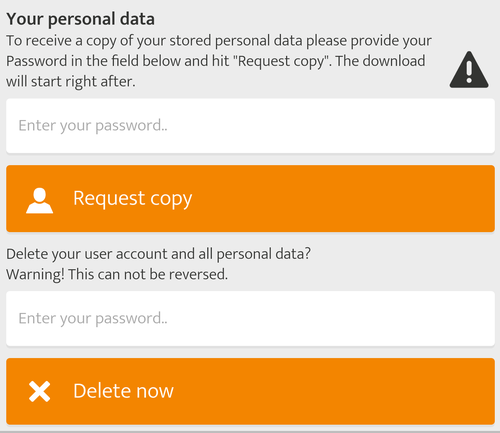
In the App settings, you can download a copy of your personal data at any time. To do this, enter your password in the dialogue box and press "Request copy". The export may take a few moments, and you can download an archive with your data as a CSV file right afterwards.
Delete Account and Personal Data
In the app settings, you can also delete your account and all your personal data. Enter your password again and press the "Delete Now" button. You will be asked again in a dialogue for your confirmation - but beware! Deleting your account can no longer be undone.

Please visit the website about the SPOTTERON Platform on www.spotteron.net
This website uses no external trackers, no analytics, just session cookies and values your online privacy.